For missing linux kernel headers or other common problems, refer to this.
use uname -r or uname -a to look up the kernel version, use dpkg --get-selections | grep linux to check the installed linux kernels.
If you click the sharefolder item in the menubar and get the follwing error: ‘The VirtualBox Guest Additions do not seem to be available on this virtual machine, and shared folders cannot be used without them’, the following commands may be helpful.
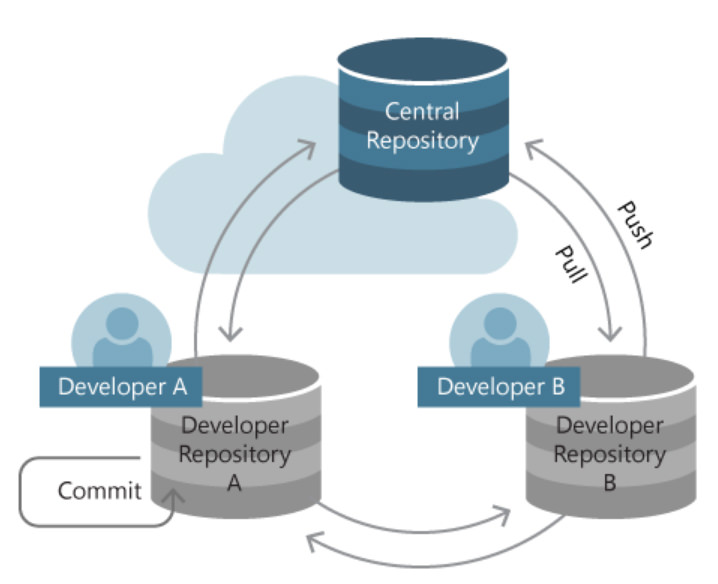
#init from scratch git init <local_dir> #for central repository without working directory, use --bare git init --bare <local_dir> #clone from GitHub, can just clone a subdirectory. pull all the remote branches. set up "main" branch to track "origin/main". git clone <remote_repo> <remote_dir> #pull from other local repository git remote add <remote_repo> <remote_address> git pull # only pull the default branch git pull <remote_repo> <remote_branch> # pull is equal to fetch and merge git fetch <remote_repo> <remote_branch>
.git/config Repository-specific settings. ~/.gitconfig User-specific settings. This is where options set with the —global flag are stored. /etc/gitconfig System-wide settings.
Staged snapshot in the staging area operations on tracked files:
1 2 3 4 5 6 7 8 9 10 11 12 13 14 15 16 17 18 19
git add <file> git add <dir> git add . # add all the files in the current directory git add * # add all the files and folders in the current directory # before using `git add .` or `git add *`, we can exclude the untracked files in `.gitignore` (e.g., `*.<ext>`, `<dir>/`, use `!<file>` for exception).
git rm <file> # delete the file git rm --cached <file> # untrack the file
git mv <old name> <new name> # mv = rm+add
git restore --staged <file> # move staged changes to unstaged changes git restore <file> # remove unstaged changes #clear the entire staging area git reset HEAD # move all staged changes to unstaged changes git reset --hard HEAD # remove all staged and unstaged changes
Commit the staged snapshot
1 2 3 4 5
git commit -m "<message>" #new commit node git commit --amend #old commit node #`-a` means staging all the changes of tracked files git commit -a -m "<message>" git commit -a --amend
Branch
1 2 3 4 5 6 7 8
git branch #list local branches git branch -r # list remote branches git branch -a # list both remote branches and local branches git branch -vv # list local branches and their tracked remote branches git branch -d <old_branch> #use -D enforce delete git checkout <old_branch> #switch to branch $branch git branch <new_branch> #create a new branch git checkout -b <new_branch> #switch to a new branch $branch
(a) Imaging there exists a hash table of key:value pairs with branch name as key and commit node as value. When checkout a new branch b1, b1:current-commit-code will be stored in the hash table. When checkout an existing branch b1, you will reach the hashed commit code. In both cases, b1 (HEAD) will be used as the hash key for the next commit node, that is, when you commit next time, b1:new-commit-code will be updated in the hash table. (b) Another perspective is treating the branch name as a pointer to the commit node and each branch is a retrospective history dating back from that node, which is essentially the same as (a).
When checkout to another branch, git status (staged or unstaged modifications) will be transferred to that branch. If there exists file conflicts (operations on common yet different files), checkout will be forbidden.
Besides branch, users can also add tag to each commit node.
1 2 3 4 5 6 7 8 9 10 11
#assume the current branch is master #merge: merge experiment into master #master moves one step forward, both experiment and original master are its parents git merge experiment #assume the current branch is experiment #rebase: base experiment on master #duplicate the nodes between C2 and experiment after master, move experiment to up-to-date git rebase master #in the simple fast-forward case, assume <branch> is ahead of <branch1> #then, `merge <branch1> <branch2>` and `rebase <branch1> <branch2>` work the same, just move <branch1> to <branch2>. #whereas, `merge <branch2> <branch1>` or `rebase <branch2> <branch1>` are not allowed.
Tracking changes
1 2 3 4 5 6 7 8 9 10
git status git log #commit history git log -n <limit> --stat git log --all --graph --oneline # show the tree structure of all branches git log --grep="<pattern>" git log --author="John Smith" -p hello.py git diff #view unstaged modification git diff --cached #view staged modification git diff <branch1>..<branch2> git diff <repo>/<branch1>..<branch2>
when using git log, it will only show the ancestral commit nodes of current node.
Date back to history
1 2 3 4 5 6 7 8 9 10 11
#revert the operations in <commit> and add one commit node ahead of HEAD #revert does not work on file git revert <commit> #go back to <commit> #git checkout <commit> <file> is just copying the <file> in <commit> git checkout <commit> #git reset <commit> changes branch name, working directory, and staged index #git reset <file> is removing the staged file git reset --mixed <commit> #default, save the working directory git reset --soft <commit> #save both working directory and staged index git reset --hard <commit> #save none, dangerous!
(a) For reset file, there are no options --hard and --soft. (b) For reset commit, after reset --mixed or reset --hard, there are no staged snapshots. After reset --soft, staged snapshots enable the staged index to remain the same. More specifically, at the time before or after reset --soft, if you run git commit, the generated commit node should be the same.
git fetch <repo> # fetch all of the remote branches git fetch <repo> <remote_branch>:<local_branch> git checkout -b <new_branch> <repo>/<remote_branch> # Checking out a local copy of specific branch git pull <repo> <remote_branch>:<local_branch> git push <origin> <local_branch>:<remote_branch>
after merging code to address the conflict, use git commit -a -m "$message", then git push.
git pull is equal to a git fetch followed by a git merge.
Clean working directory
1 2 3
git clean -f/d #clean untracked files/directory git clean -f $path #clean untracked files in $path #`git clean` is often used togther with `git reset —hard`
Stashing
If you are working in your repository, and your workflow is interrupted by another project, you can save the current state of your repository (the working directory and the staging index) in the Git stash. When you are ready to start working where you left off, you can restore the stashed repository state. Note that doing a stash gives you a clean working directory, and leaves you at the last commit.
1 2 3 4
git stash save # stash the current state git stash list # see what is in the Git stash: git stash apply # return your stashed state to the working directory git stash pop # return your stashed state to the working directory and delete it from the stash
Note the commit-tree grows. “git log” prints the path from root to current node. “leave behind” prints the path from current node to the first common ancestor between current node and new node. Detached head will be off any branch, so create a new branch for the detached head.
Tips:
checkout and reset work on both file and commit with different meanings and usages, while revert only works on commit.
reset is often used for cancelling uncommited changes while revert is often used for cancelling commited changes.
Compared with reset, checkout and revert focus on the modification, so they are forbidden in many cases.
Linker->Input->Additional Dependencies: copy all the lib files. *d.lib means debug mode.
Note that there may be some problems for visual studio to recognize the updated environmental variable. Try to restart the visual studio or recreate the project.
in which the IP address is the Windows IP and the port is the default Eclipse debugger port.
Under Linux:
pip install pydevd
In the file lib/python2.7/site-packages/pydevd_file_utils.py, modify PATHS_FROM_ECLIPSE_TO_PYTHON = [(r'L:\test', r'/home/niuli/test')], in which the former is Windows path and the latter is Linux path.
Under Windows:
Install Eclipse IDE and PyDev plugin for Eclipse.
Pydev->Start Debug Server
Open the Debug perspective and watch Debug Server.
After the above preparation, run python code under Linux and the debugging process will jump to the debug server under Windows. For interactive debugging, open PyDev Debug Console.
After installation, create a shortcut a) sudo ln -s /usr/local/MATLAB/R2012a/bin/matlab /usr/bin/matlab b) copy the matlab.desktop to /usr/share/applications and matlab.png to /usr/share/icons.