Format

  1. DICOM: (Digital Imaging and COmmunications in Medicine) meta info + raw data
  2. nrrd: meta info (e.g., sizes, dimension, encoding, endian) + raw data

The meta info in nrrd mainly consists of the format of raw data while the meta info in DICOM contains the detailed information of patient, study, and series.
There exist matlab and python functions to read DICOM and nrdd files.

  • MATLAB

DICOM is generally a directory containing a sequence of slices while nrrd is a single file. The meta info of DICOM is more complicated and thus more error-prone than that of nrrd. Use DICOMPatcher to fix up DICOM files if errors occur when loading them to 3D Slicer.

Software

  1. 3D Slicer: cross-platform, compatible with different formats (e.g., DICOM and nrrd), and convert between them.

  2. Other softwares to view medical images: http://www.cabiatl.com/mricro/dicom/#links

  1. run MATLAB using shellscript

    1
    matlab -nodisplay -r "vid2frames('../data/regular_videos/', 'RiceCam106.MP4', '../data/frames/', '.png');exit"
  2. VideoReader: NumberOfFrames is 0, cannot read frames.

    something is wrong with gstreamer, first get the right version of gstreamer (0.10 for MATLAB R2015b)

    • install gst-plugins
      1
      2
      sudo add-apt-repository ppa:ddalex/gstreamer
      sudo apt-get install gstreamer0.10-*
    • install gstffmpeg
      1
      2
      3
      sudo add-apt-repository ppa:mc3man/gstffmpeg-keep
      sudo apt-get update
      sudo apt-get install gstreamer0.10-ffmpeg

  1. Problem: HTML cannot be rendered: the view has crashed awesomium: Awesomium.Windows.Controls.WebControl
    solution: Win+R to open regedit: change the following value from 1 to 0
    HKEY_LOCAL_MACHINE\SYSTEM\CurrentControlSet\Control\Lsa\FipsAlgorithmPolicy\Enabled

  2. Problem: How to suppport Latex: MathJax?
    solution: tools > Options > Advanced > HTML Head Editor, add the following:

    1
    2
    3
    <script type="text/javascript"
    src="http://cdn.mathjax.org/mathjax/latest/MathJax.js?config=TeX-AMS-MML_HTMLorMML">
    </script>

    After adding the above, a simple example in the MarkDownPad: When $a \ne 0$, there are two solutions to $ax^2 + bx + c = 0$ and they are:

Tips:

  1. insert image: <center><img src="http://....jpg" width=50% border="0"></center>

Installation:

  • Ubuntu

    1
    2
    sudo apt-get install texlive-full	
    sudo apt-get install texmaker
  • Windows

    1. Install Miktex: https://miktex.org/download
    2. Install texmaker or texstudio

Extension:

  1. Latexdiff

Math input:

  1. Include the definition.tex file with macro definition. \input{definition} in the main text.

  2. Mathpix Snip can convert images to LaTeX.

  3. IguanaTex allows you to insert LaTeX formulations in PowerPoint.

Tips:

  1. Refer to this for commonly used symbols

  2. Set color: \usepackage{xcolor} and \textcolor{red}{}

  3. Setlength: set the indentation in paragraphs \setlength\parindent{0pt}; set the separation between paragraphs \setlength{\parskip}{10pt}; set column width in table \setlength{\tabcolsep}{12pt}; set the space below table/figure \setlength{\textfloatsep}{2pt}

  4. Math annotation: expectation \usepackage{amsfonts} and \mathbb{E}; not imply: \usepackage{amssymb} and \nRightarrow

  5. Encoding error: try adding \UseRawInputEncoding or \usepackage[utf8x]{inputenc} or \usepackage{newunicodechar} \newunicodechar{fi}{fi}

Difference between VM and Docker

VM: guest OS -> BINS&LIBS -> App
Docker: BINS*LIBS -> App

Installation

https://docs.docker.com/engine/install/ubuntu/

Uninstallation

  • Uninstall the Docker Engine, CLI, containerd, and Docker Compose packages: sudo apt-get purge docker-ce docker-ce-cli containerd.io docker-buildx-plugin docker-compose-plugin docker-ce-rootless-extras
  • Images, containers, volumes, or custom configuration files on your host aren’t automatically removed. To delete all images, containers, and volumes: sudo rm -rf /var/lib/docker, sudo rm -rf /var/lib/containerd

Commands
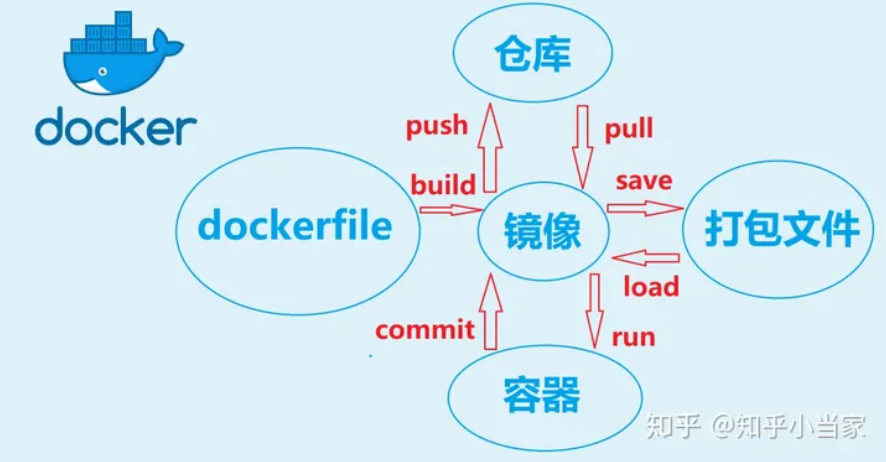
image

docker image pull $image_name:$version

docker image tag $image_name:version $registryIP:port/username/image_name:version

docker image push $registryIP:port/username/image_name:version

docker image build -t $image_name .

docker image ls

docker image rm $image_name

docker image save $image_name > $filename

docker load < $filename

container
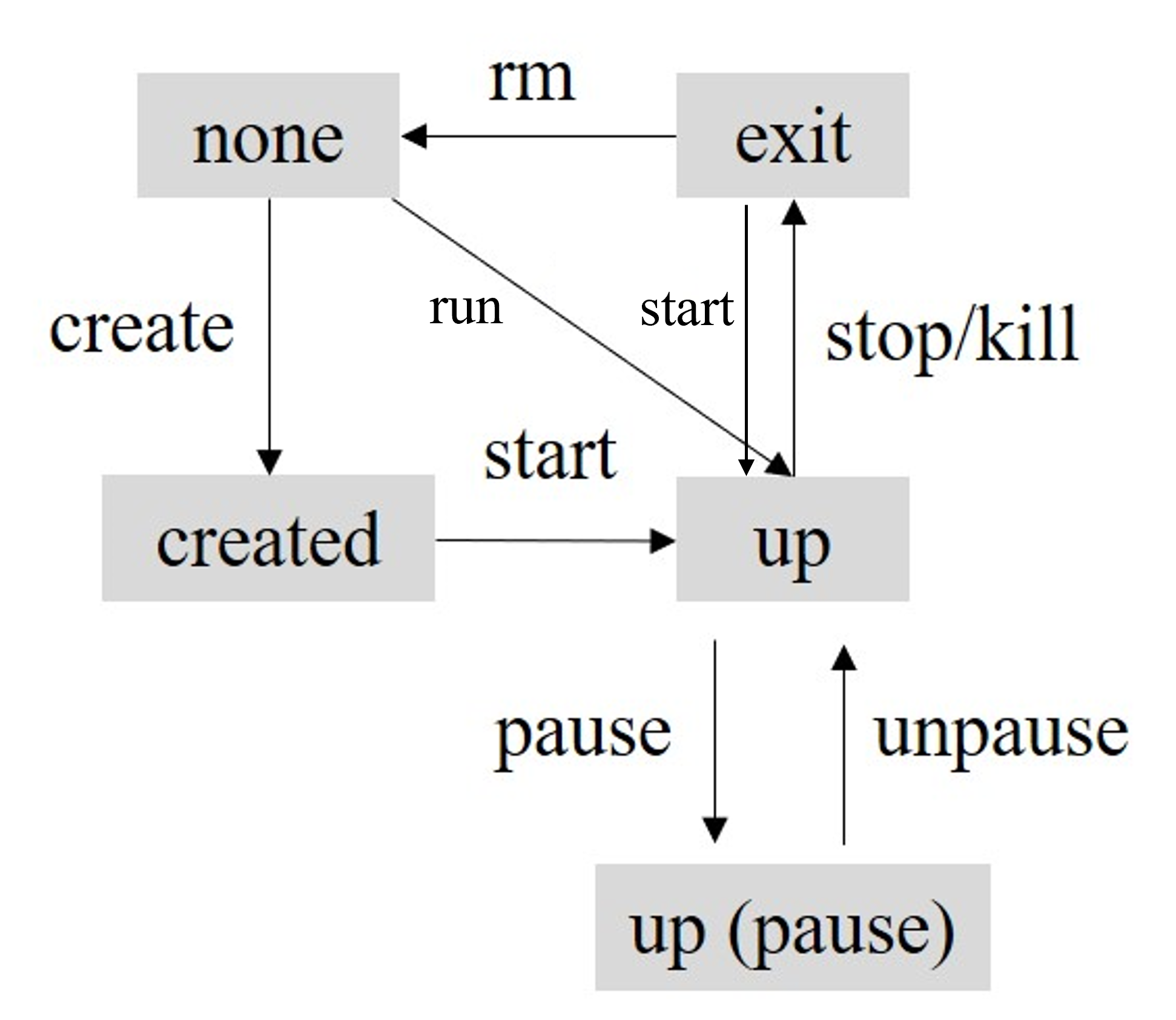
docker container create $image_name

docker container start $container_ID

docker container run $image_name # run is equal to create and start

docker container run -it $image_name /bin/bash

docker container ls, docker container ls --a

docker container pause $container_ID

docker container unpause $container_ID

docker container stop $container_ID

docker container kill $container_ID # the difference between stop and kill is that stop may do some clean-up before killing the container

docker container rm $container_ID

docker container prune # remove all the exit containers

docker container exec -it $containe_ID /bin/bash

docker container cp $container_ID:$file_path .

docker container commit $container_ID $image_name:$version

Dockerfile

FROM python:3.7
WORKDIR ./docker_demo
ADD . .
RUN pip install -r requirements.txt
CMD ["python", "./src/main.py"]

Tutorial: [1]

Use GPU in docker

  1. Install nvidia-docker https://docs.nvidia.com/datacenter/cloud-native/container-toolkit/latest/install-guide.html

  2. docker run --gpus all -it $image_name

Initialization


shape = [batch,height,width,channel]
constant:

1
2
3
4
tf.zeros(shape)
tf.constant(0.4, shape)
tf.random_norm(shape, stddev=1e-1)
tf.truncated_norm(shape, stddev=1e-1)

variable:
1
2
3
4
5
tf.get_variable(varname, shape=[5,5,64,192], initializer=XXX)
initializer=tf.zeros_initializer() # bias
initializer=tf.random_normal_initializer(0.0, 0.02)
initializer=tf.truncated_normal_initializer(0.0, 0.02)
initializer=tf.contrib.layers.xavier_initializer() # weight

Empirically, for weight initialization, xavier is better than truncated_norm, better than random_normal.

Summary for tensorboard


1
2
3
4
tf.summary.scalar('total_loss', total_loss) #scalar, histogram, etc
self.merged = tf.summary.merge_all()
train_writer = tf.summary.FileWriter(summary_folder, model.sess.graph) #include the sess graph
train_writer.add_summary(summary, ibatch)

after running the code, open tensorboard tensorboard --logdir='./train'

Checkpoint


1
2
3
4
5
6
7
8
9
10
# save all the variables
saver = tf.train.Saver()
# save partial variables
saver = tf.train.Saver({"my_v2": v2})
# save and restore
saver.save(sess, "/tmp/model.ckpt")
saver.restore(sess, "/tmp/model.ckpt")
# restore partial variables
init_fn = slim.assign_from_checkpoint_fn(checkpoint_path, slim.get_variables_to_restore())
init_fn(sess)

inspect the checkpoint file

1
2
3
4
5
6
7
from tensorflow.python import pywrap_tensorflow  
checkpoint_path = os.path.join(model_dir, "model.ckpt")
reader = pywrap_tensorflow.NewCheckpointReader(checkpoint_path)
var_to_shape_map = reader.get_variable_to_shape_map()
for key in var_to_shape_map:
print("tensor_name: ", key)
print(reader.get_tensor(key)) # Remove this is you want to print only variable names

Layer


  • convolutional layer

    1
    2
    3
    4
    kernel = tf.Variable(tf.zeros([5,5,64,192]))
    tf.nn.conv2d(x, kernel, strides=[1, 1, 1, 1], padding='SAME') # padding is 'SAME' or 'VALID' depending on stride is 1 or larger

    tf.nn.bias_add(prev_layer, bias)
  • dropout layer

    1
    2
    3
    keep_prob = tf.placeholder(tf.float32)
    # set keep_prob as 0.5 during training and 1 during testing
    tf.nn.dropout(h_fc1, keep_prob)
  • pooling layer

    1
    tf.nn.max_pool(x, ksize=[1, 2, 2, 1],  strides=[1, 2, 2, 1], padding='VALID') 
  • loss layer

    1
    2
    tf.nn.softmax_cross_entropy_with_logits(labels=y_, logits=y))
    tf.nn.l2_loss(prev_layer)
  • metric layer

    1
    2
    # calculate top-k accuracy
    tf.nn.in_top_k(logits, label_holder, k) # the accuracy of top k
  • activation layer

    1
    tf.nn.relu(prev_layer)
  • other layers

    1
    2
    3
    tf.one_hot(self.input_class, self.n_class)
    tf.nn.embedding_lookup(codebook, indices)
    tf.nn.lrn() # legacy

Common Operations

1
2
3
4
5
6
7
8
9
10
11
12
13
14
15
16
17
tf.matmul
tf.pow
tf.diag_part
tf.reduce_sum
tf.reduce_mean
tf.nn.softmax
tf.tile(a,(2,2))
tf.nn.embedding_lookup
sim.flatten
tf.squeeze
tf.reshape
tf.concat(values=[a,b,c], axis=3)
tf.gather #get indexed value, only on 0-dim
tf.gather_nd
tf.map_fn
tf.scan_fn
tf.fold1/foldr

Training and testing


  • training stage

    1
    2
    3
    4
    optimizer = tf.train.GradientDescentOptimizer(0.01)
    train = optimizer.minimize(loss)
    for i in range(1000): #note the iteration number here
    sess.run(train, feed_dict={x:x_train, y:y_train})
  • testing stage

    1
    2
    acc.eval(feed_dict={x:x_test, y:y_test})
    sess.run(acc, feed_dict={x:x_test, y:y_test}

Queue


  • For plain TensorFlow, reading data via queue is cumbersome. Refer to my another blog ‘TensorFlow Input Data’ for more details.
    ``python
    with tf.Session(config=config) as sess:
      coord = tf.train.Coordinator()
      threads = tf.train.start_queue_runners(sess=sess, coord=coord)
      sess.run(tf.initialize_local_variables())
      #main code
      coord.request_stop()
      coord.join(threads)
    
    1
    2
    3
    4
    * With tfrecord and slim, using queue is much easier by using 	`slim.queues.QueueRunners`
    ```python
    with tf.Session(config=config) as sess:
    with slim.queues.QueueRunners(sess):
    or sv.managed_session
    1
    2
    sv = tf.train.Supervisor(logdir=logdir, save_summaries_secs=0, saver=None)        
    with sv.managed_session() as sess:
    Sample code of generating tfrecord dataset and reading data via queue can downloaded here

Utils


  • check tensorflow version

    1
    tf.__version__.split('.')[0] != "1"
  • count parameter numbers

    1
    parameter_count = tf.reduce_sum([tf.reduce_prod(tf.shape(v)) for v in tf.trainable_variables()])

  1. Input raw data (e.g., text, image address). There are many different implementations of queue.

  2. A more elegant way is converting raw data to tfrecord format.

Tips:

  1. setting large number_of_threading (e.g., 10) is helpful.

  2. shuffle the training samples to avoid homogenuity when necessary.

  3. place the training data in local disk instead of removable disk (consider I/O speed).

All the GPU memory will be notoriously filled up even if you designate one GPU device.

maximum fraction

gpu_options = tf.GPUOptions(per_process_gpu_memory_fraction=0.333)
sess = tf.Session(config=tf.ConfigProto(gpu_options=gpu_options))

automatic growth

config = tf.ConfigProto()
config.gpu_options.allow_growth=True
sess = tf.Session(config=config)

visible GPU:

os.environ[“CUDA_VISIBLE_DEVICES”] = “0,1” # use python to set environment variables

use multiple GPUs

One typical to use mulitple GPU is to average gradients, please refer to the sample code.

0%